

- In the app. Use the Loops section in the sidebar to create, edit, run, and review loops. See Create a loop.
- From chat. Ask the agent in any project chat to create, change, pause, or run a loop for you. See Manage loops from chat.
Create a loop
Each project in the sidebar has a Loops section. Choose + in its header to open the editor, fill in the fields, and choose Create Loop.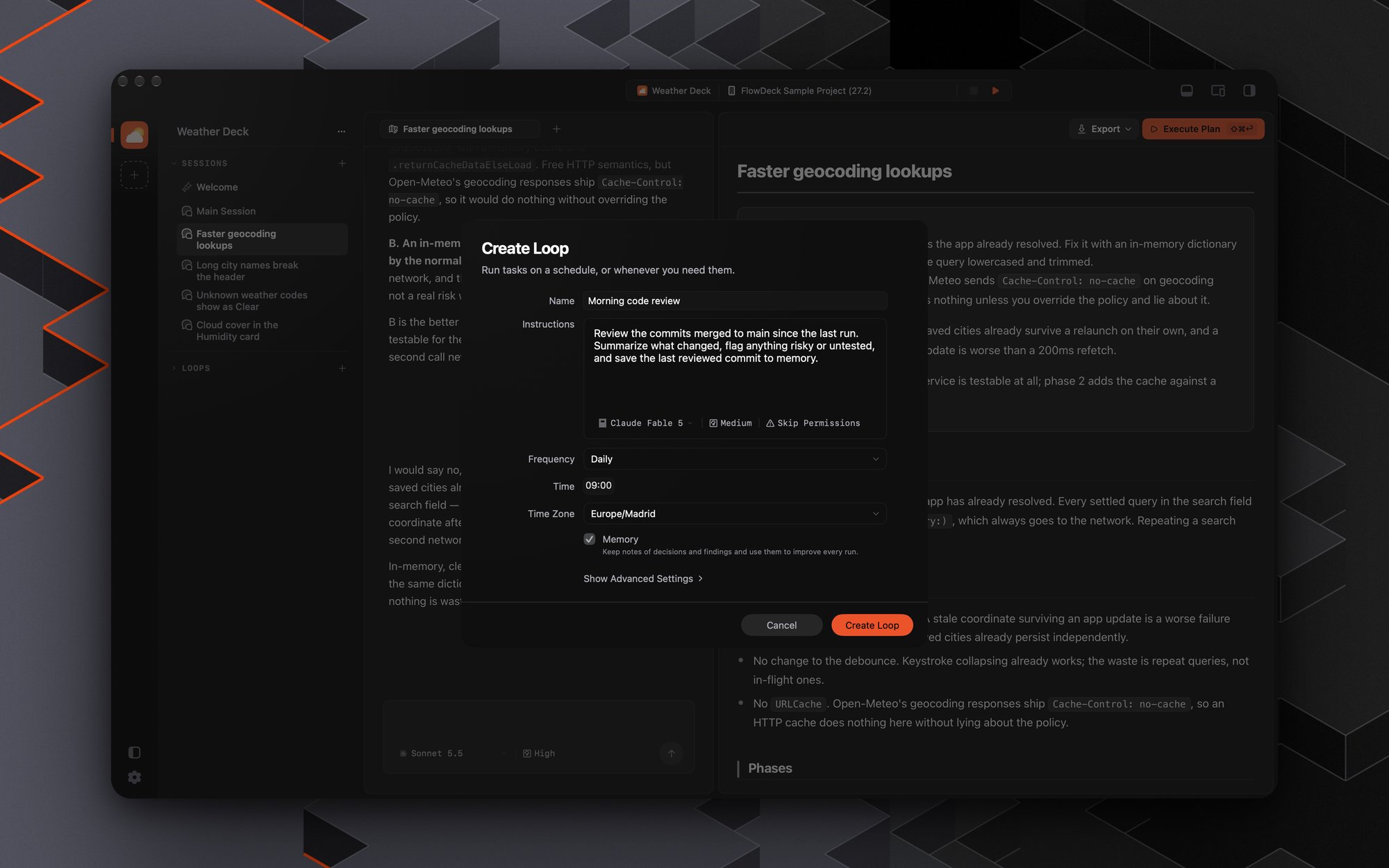
The loop editor: instructions, agent, schedule, time zone, and memory
Show Advanced Settings reveals two more options:
- Source Branch: the branch every run starts from. Defaults to
main. The list shows local branches first and adds remote ones as they arrive. - Destination: where build, run, and test commands go during a run. Pick your Mac, a device, an existing simulator, or a new simulator. With an existing simulator, all simulator work runs there and the loop never deletes it. With a new simulator, FlowDeck creates one for each run when needed and removes it when the run ends.
Manage loops from chat
You do not need to open the editor. Describe the recurring work in a project chat and the agent creates the loop for you. For example:- “Every weekday at 9:00 Madrid time, review the commits merged to main since the last run. Flag risky changes and missing tests, and don’t edit any files.”
- “Check our package manifests for outdated dependencies every Monday morning and summarize what changed upstream.”
- “Run the unit tests every hour and tell me when something starts failing.”
What the agent can do
Loops you create or change in chat are the same loops you see in the app. Edit them in
the editor, watch their runs, and read their memory exactly as you would any other.
Permissions and limits
- Chat-created loops start with Allow Edits. A loop that skips permissions removes the safety sandbox, so an agent can create one only when your chat is itself running in Skip Permissions. From any other chat, ask for Allow Edits, or open the editor and choose Skip Permissions yourself.
- Skip Permissions loops are locked from other chats. Unless your chat also skips permissions, an agent can rename or reschedule such a loop but cannot change its instructions, agent, model, effort, or source branch.
- A project holds up to 50 loops when an agent creates them. A name is one line of at most 100 characters and instructions are at most 20,000 characters.
- “Don’t edit files” is an instruction, not a lock. A chat-created loop runs with Allow Edits, and there is no read-only permission, so a request to leave files alone only goes into the loop’s instructions. If a loop must never change anything, say so clearly and review its first runs.
- Deleting from chat never removes a simulator. To also delete the simulator a loop created, use Delete Loop in the app.
- Only the agent in a regular project chat can manage loops. Scheduled runs, follow-up chats on a run, and Plan chats cannot.
Schedules
Daily, weekday, weekly, and monthly schedules use the Time Zone you pick, so a
loop set for 9:00 in New York keeps running at 9:00 New York time when you travel.
Custom schedules can run at most every 5 minutes. If you enter a shorter interval, the editor says so next to Create Loop.
Loops run only while FlowDeck is open. If FlowDeck was closed or your Mac was asleep
when a run was due, that run is not made up later; the loop waits for its next
scheduled time.
Watch and review runs
Select a loop to see its schedule, its run history, and the selected run’s output. The header has the Active switch, Run Now, Edit Loop, Memory, and Delete Loop.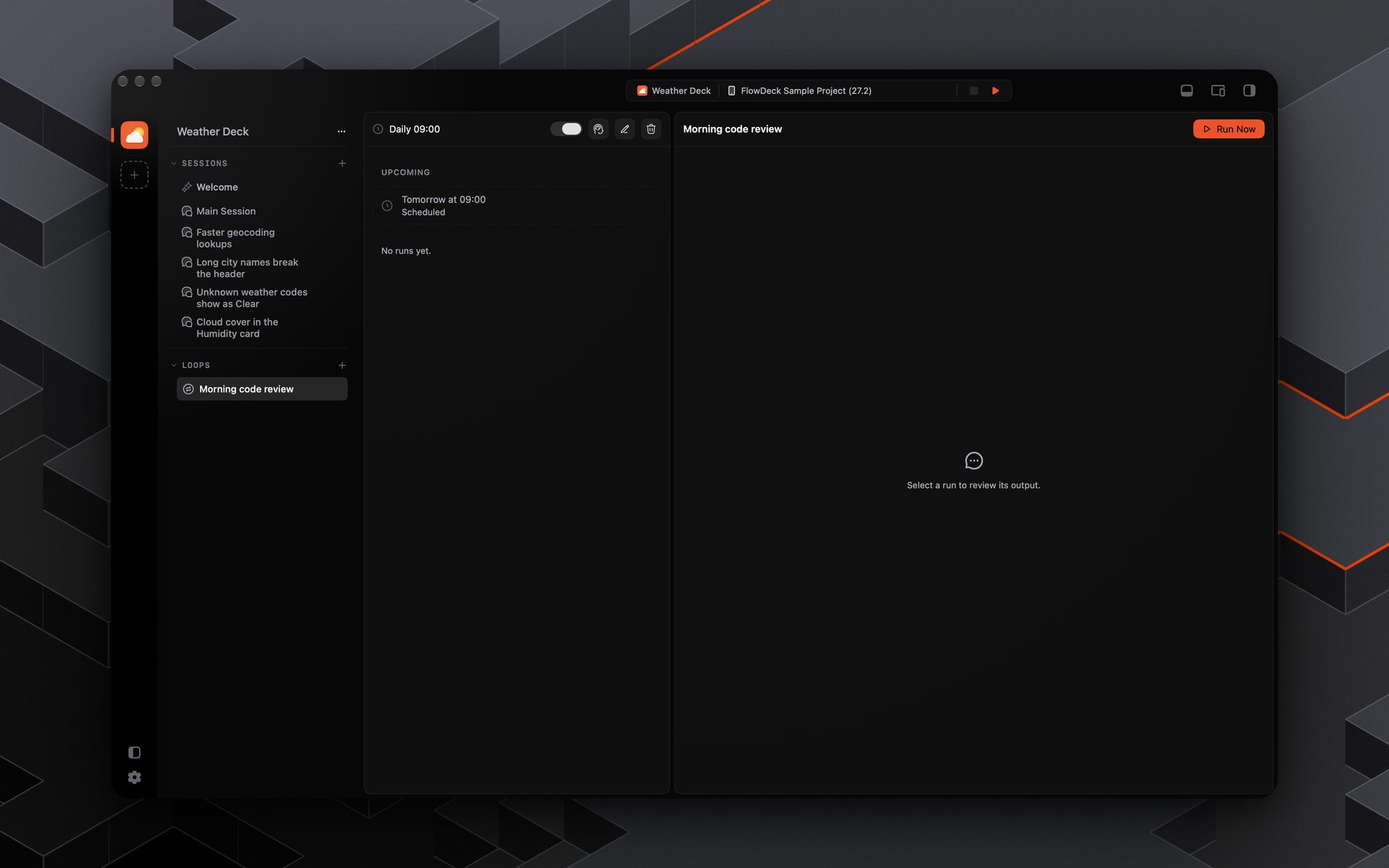
A loop's page: the schedule and toggle, the next scheduled run, and Run Now
- Run Now starts a run immediately, whatever the schedule. While a run is going, the button becomes Stop Run.
- The Active switch pauses and resumes a scheduled loop. Resuming picks up from the next scheduled time. Manual loops have no switch.
- History lists the next scheduled run under Upcoming, then past runs with their status, whether they were manual or scheduled, and how long they took. Each loop keeps its 25 most recent runs.
Continue a run as a chat
Every run keeps its chat, so you can ask follow-up questions or request more work on any finished run. Follow-ups work like any other chat: the agent asks for permission as usual, and your answers never change the loop’s saved instructions or other runs. If a run is still going, you can continue once it finishes. Follow-ups run in the loop’s workspace. When the next run starts, the loop’s open chats close first, so a follow-up never edits files while a run is using them. Older runs show a note that the workspace now holds a newer run’s files. You can also reach a loop from Open Quickly (⌘K) by searching for its name. While a loop is open the top bar shows no controls: a loop has no build target, console, simulator or inspector. To review what a run changed, use Continue in New Session and open the changes from that session.Continue in New Session
Continue in New Session turns any finished run into a normal session. The new session starts from the files that run left, with its edits shown as uncommitted changes. The run’s conversation appears in the new chat and the agent knows what it says, so you can keep asking about it. The button is available while the loop has no run in progress. If the run’s files are no longer available, FlowDeck asks before starting from the loop’s source branch without them. If a session was already started from the run and still exists, FlowDeck asks whether to open it or start another. A run’s details show the branch it started from and the branches of any sessions continued from it.How a run works
Every run is a fresh, unattended agent conversation:- Its own workspace. Each loop has a private worktree. Before each run, FlowDeck fetches and resets it to the source branch. Before resetting, FlowDeck saves what the previous run left, including uncommitted changes, and keeps it as long as that run is in history. Files left behind by a cleanup that failed are removed the next time FlowDeck starts. If the fetch fails, the run starts from the last fetched or local copy of the branch. Your own sessions and their files are never touched.
- No one to ask. A run cannot wait for you. If the agent asks a question, needs a permission you have not granted, or wants a plan approved, the run fails and keeps whatever output it produced. Write instructions the agent can complete on its own, and choose the permission level it needs.
- The settings you saved. A run uses exactly the agent, model, effort, and permission saved with the loop. If one of them is unavailable, for example a signed-out provider or a removed model, the run fails rather than switching to something else.
- Completed means the agent finished. A completed run means the agent finished its turn. Check the summary to see whether the work itself succeeded.
Limits
Loops run without supervision, so FlowDeck keeps them from running away:- A run stops after two hours of awake time. Time your Mac spends asleep does not count. Partial output is kept.
- A run fails if the agent goes silent for 10 minutes while no tool is running.
- At most three loops run at once. A scheduled run that would exceed that is recorded as skipped. Run Now reports that too many loops are running.
- If a scheduled run comes due while the previous run of the same loop is still going, the new one is skipped.
- After three failed runs in a row, the loop pauses itself and explains why. Fix the cause, then turn Active back on.
Memory and self-improvement
With Memory on, a loop improves from run to run. Each run:- reads the loop’s memory before it starts, and applies what earlier runs decided and learned;
- records each durable decision or finding as it works, such as a project fact, a pitfall and its fix, or an approach that worked or failed;
- reviews the notes before it finishes, merging duplicates and removing anything obsolete or wrong.