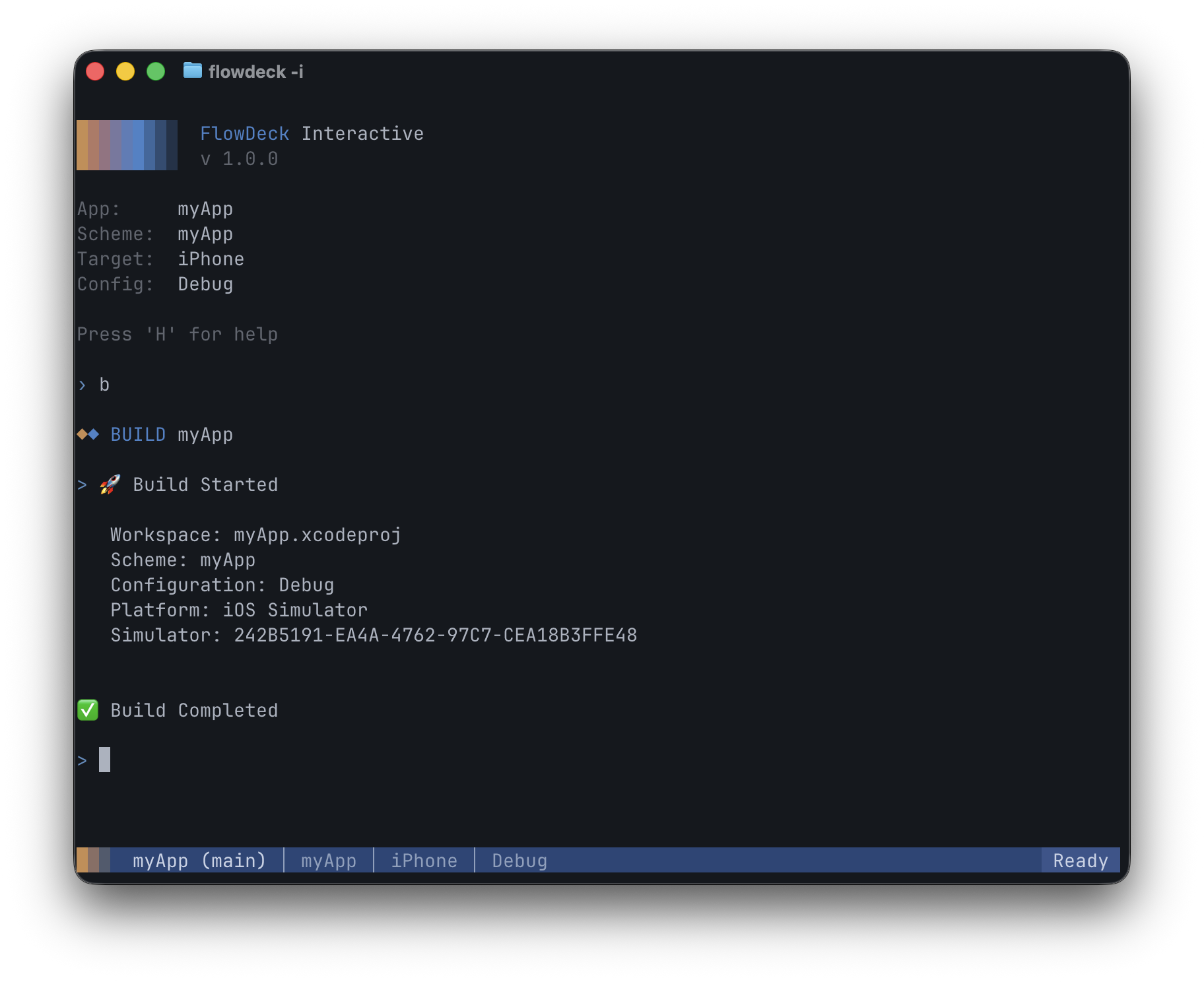
FlowDeck CLI includes a powerful interactive mode that provides a terminal-based IDE experience. Launch it with flowdeck -i to get a persistent development environment with keyboard shortcuts, log streaming, and a status bar.

Launching Interactive Mode

cd ~/Projects/MyApp
flowdeck -i
On first run, the interactive mode will guide you through a setup assistant to configure your workspace, scheme, and target.

Example Session

Clean Shot2025 12 17at18 39 48@2x

Status Bar

The bottom of the terminal displays a persistent status bar showing:
  • Project name and git branch
  • Current scheme
  • Target (simulator or device)
  • Build configuration (Debug/Release)
  • App status (Idle, Building, Running, Error)

Keyboard Shortcuts

Quick Actions

KeyAction
BBuild the project
RBuild and Run in the selected simulator or device
URun Tests menu
KClean menu (see below)
XStop running app
LToggle log/test viewer (available when an app is running)

Build Configuration

KeyAction
SSelect scheme
TSelect target (simulator/device)
CSelect configuration (Debug/Release)
MSwitch to other workspaces in your folder or subfolders

Project Commands

KeyAction
PProject Commands menu (see below)

Other

KeyAction
DDevices, Simulators & Runtimes menu
FFlowDeck settings
KeyAction
HShow help
QQuit interactive mode
Page UpScroll output up
Page DownScroll output down
/ Command history

Clean Menu

When you press K, a Clean menu appears with the following options:
OptionAction
Clean ProjectCleans the build artifacts for the current scheme
Clean Xcode CacheClears Xcode’s internal caches
Clean Derived DataRemoves the DerivedData folder
Clean Derived Data removes all cached build products and may require a full rebuild of your project.

Project Commands Menu

When you press P, the Project Commands menu appears with the following options:
OptionAction
Swift PackagesOpens a submenu with package management options
Sync Provisioning ProfilesSyncs provisioning profiles via build with automatic signing
Export Project ConfigExport current configuration to a file for use with CLI commands
Open in XcodeOpens the current workspace in Xcode

Swift Packages Submenu

OptionAction
Resolve PackagesResolves Swift Package dependencies
Update PackagesUpdates packages to latest versions (clears cache and re-resolves)
Clear Package CacheRemoves the SourcePackages directory from DerivedData
Use “Update Packages” when you want to fetch the latest versions of all packages, such as after a new release or when resolving version conflicts.

Devices Menu

When you press D, the Devices, Simulators & Runtimes menu appears. This menu allows you to:
  • View and manage connected physical devices
  • View and manage iOS/tvOS/watchOS simulators
  • Manage simulator runtimes
  • Prune Unused Simulators (last 90d) - Remove simulators that haven’t been used in the last 90 days
The prune option shows a confirmation dialog before removing any simulators.

Features

Log Streaming

Press L to toggle real-time OSLog streaming from your running app. Logs appear in the main output area while the status bar remains fixed at the bottom.

Test Selection

When you press U to run tests, you can choose:
  • All Tests - Run the complete test suite for the selected Scheme
  • Recent Tests - Re-run tests from your current session
  • Specific Tests - Pick individual test classes or methods

Scheme & Target Selection

Press S or T to interactively select from available schemes, simulators, or connected devices. Your selection is saved for future sessions. Target Options:
  • My Mac - Build and run as a native macOS app
  • My Mac Catalyst - Build and run iOS app on Mac via Catalyst (only appears if your scheme supports it)
  • Physical Devices - Connected iPhones, iPads, etc.
  • Simulators - iOS, iPadOS, tvOS, watchOS simulators

State Persistence

Interactive mode saves your configuration to your home holder to avoid having to configure the CLI every time.
  • Workspace path
  • Selected scheme
  • Selected simulator/device
  • Build configuration
  • Log streaming preference
  • Recent tests
This state persists across sessions, so you can quit and resume without reconfiguring.

Saving Configuration to a file

You can store your current configuration by selecting Export Project Config from the Project Commands menu (press P, then select Export Project Config). This allows you to use the configuration with CLI commands. You can directly run commands with a pre-defined configuration by passing the --config option
flowdeck build --config your_config.json

Tips

Use ESC during a build or test run to cancel the operation.

Exiting

Press Q (when no command is running) to exit interactive mode. Your terminal will be restored to its normal state.

Getting Help

In Interactive Mode

Press H at any time to display the help screen with all available commands and shortcuts. You can also find quick access to online dodumentation

Command Line Help

# Show all CLI options
flowdeck --help

Common Issues

The setup assistant runs when FlowDeck can’t find a valid workspace or scheme. Make sure your project has a .xcworkspace or .xcodeproj file and run the setup again with S to select a scheme.
Make sure the terminal window is focused and no command is currently running. Some shortcuts are disabled during builds or test runs.
Press L to enable log streaming. Logs only appear when an app is running on a simulator. Physical device logs require Console.app.
Run flowdeck build outside interactive mode to see full error output, or check your Xcode signing settings.

Documentation